How to recover deleted photos on iPhone
First check Recently Deleted in Apple Photos. Gallery Checkup does not recover permanently erased files or extend Apple’s recovery window. Stop any further cleanup until you locate the photo you need.
Recover a photo in Apple Photos
- Open Photos and find Recently Deleted under Utilities in Collections.
- Unlock the album when prompted.
- Select the photo you want back.
- Choose Recover from the available actions and confirm.
- Check that the photo returns to your library.
Older Photos layouts place this album under Albums. Menu positions can vary with iOS. Apple’s recovery instructions cover the current layout.
Understand when recovery ends
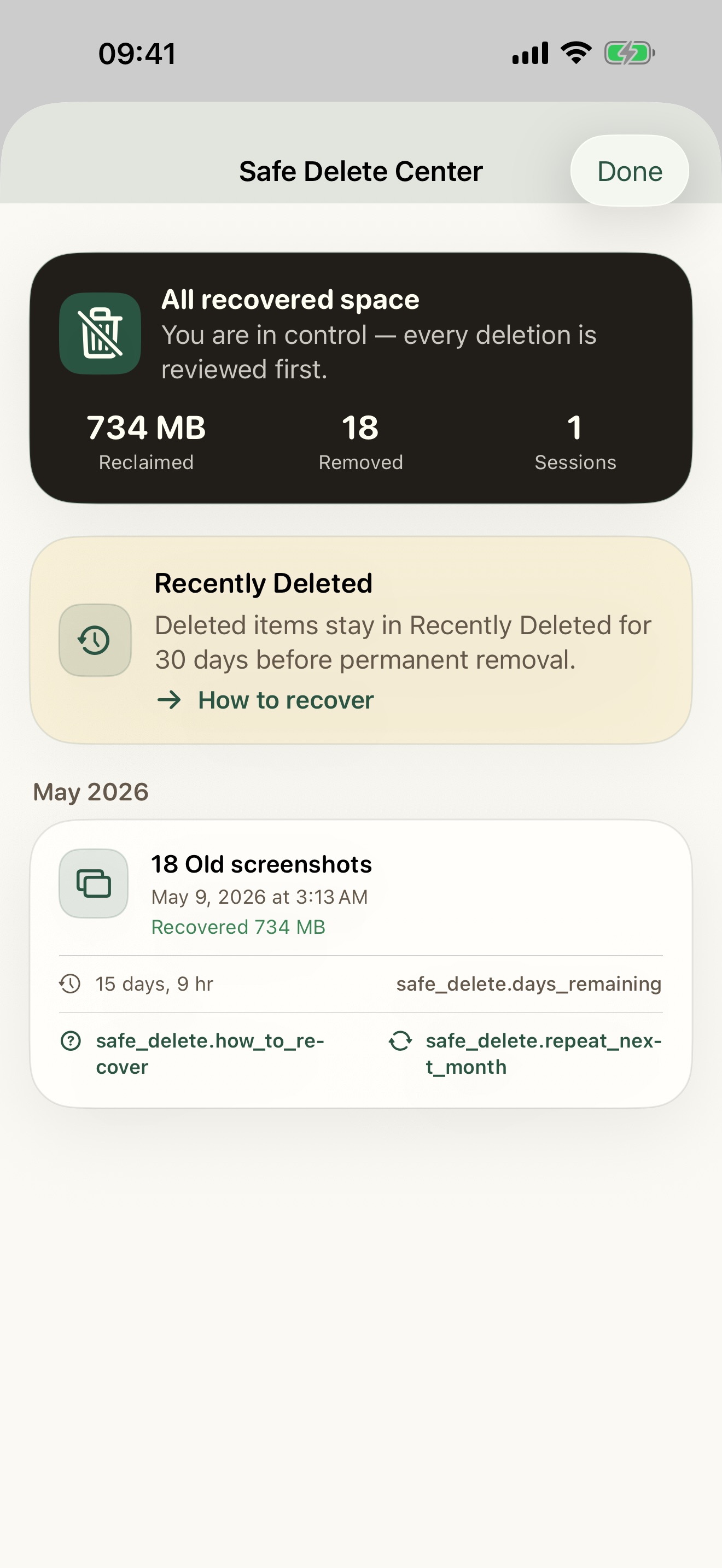
Deleted items normally remain in Recently Deleted for 30 days. Check the remaining time shown for the item. If you permanently delete it there, Photos cannot restore it, even before the 30 days end.
For an iCloud Shared Photo Library, only the contributor can recover or permanently delete their items from Recently Deleted. A countdown in Gallery Checkup is a reminder; it cannot guarantee the item still exists.
iCloud Photos is sync, not an independent backup
When iCloud Photos is enabled, a deletion propagates to the other devices on the same Apple Account. A second synced device does not preserve a separate copy.
Keep an independent copy of important originals on a computer or another backup destination. Verify that the files open before you start cleanup. A backup can only help if it contains the photo you need.
If the photo is not in Recently Deleted
Check Hidden, the Apple Account in use, and the Personal or Shared Library view. The photo may be outside the current view rather than deleted. Follow Apple’s missing-photo checks.
If the recovery window expired, look for an independent copy. Do not erase or restore your whole phone just to try a recovery step without understanding what that would replace.
Use Gallery Checkup to review before deletion
Protected favorites and albums reduce the items offered for cleanup. Practice mode lets you explore the review before a real removal. You still need to check each final selection.
When you are ready, start with a small screenshot cleanup. For a fuller plan, use the storage guide.